
Guides
How to Spoof KMBox NET
Learn how to spoof your KMBox Net step-by-step with our comprehensive guide.

KMBox Updates
-
20/12/2024
-
5 Minute Read
Spoofing your KMBox Net can improve your security and prevent detection while using the device. Please note these steps will need to be completed everytime firmware is updated, Follow this comprehensive guide step-by-step to ensure success. Let’s dive in!
1. Disconnect All Cables
Start by disconnecting all cables and your mouse from the KMBox. This ensures a clean slate for the spoofing process.
2. Connect Mouse Directly to Main PC
Connect your mouse to your Main PC as usual, without the KMBox. On your Main PC, download and extract USBLogView.exe to desktop,
Run USBLogView.exe and make the program fullscreen.

3. Record Vendor ID and Product ID
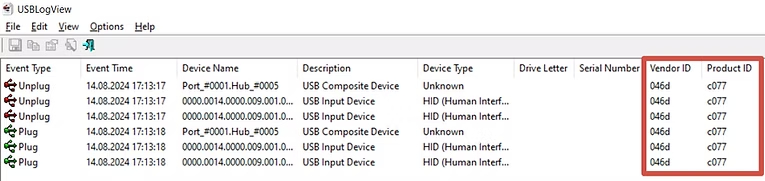
Unplug your mouse from the Main PC and plug it back in. USBLogView will display the Vendor ID and Product ID of your mouse. Write this data down as a single line without spaces (e.g., 046dc077).
Note: If your mouse’s Vendor ID and Product ID contain only numbers (e.g., 10381830), it may not be suitable for spoofing. Consider using a different mouse.

4. Connect KMBox to Both PCs
Connect the KMBox to both your Main PC and Second PC (Radar PC).

5. Run Spoofing Software on Second PC
On your Second PC, download KMBox Net Software, and extract to desktop
Run kmboxNet╔╧╬╗╗·│╠╨≥.exe. Enter the IP, Port, and UUID displayed on your KMBox Net.
If software failes to start rename the .exe to kmboxNet╔╧╬╗╗·│╠╨≥.exe
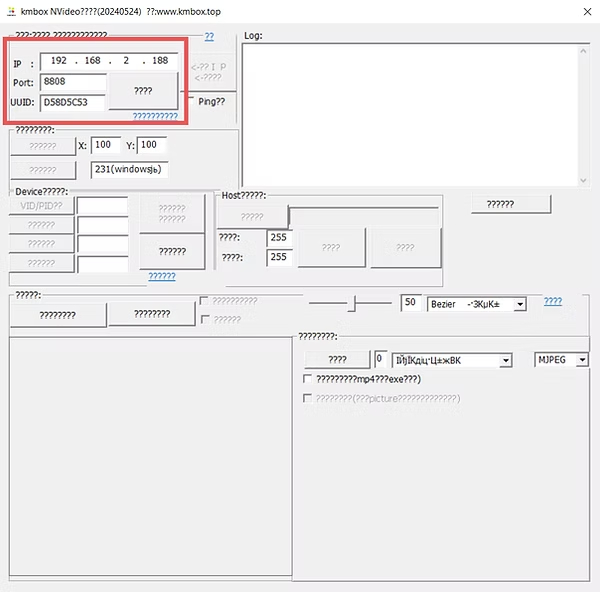
6. Test Connectivity
Check the "Ping" box and click the large button. A window should appear with "OK" at the end. If not:
- Restart the KMBox by unplugging and reconnecting it to the Main PC.
- Run the executable as an administrator.

7. A window should appear in which OK will be written at the end.

8. Enter Vendor ID and Product ID
Input the Vendor ID and Product ID (e.g., 046dc077) from Step 3 and click the VID/PID button. You should see a confirmation window indicating success.

9. You should see such a window which means that the process was successful
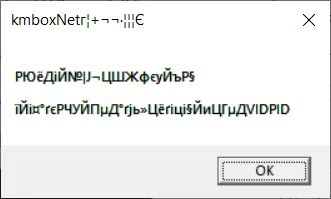
10. Verify Spoofing Success
Return to your Main PC and reopen USBLogView.exe. Make the program fullscreen. Unplug the KMBox from the Main PC and plug it back in. Confirm that the Vendor ID and Product ID match the values from Step 3. If they do, the spoofing process is complete.


DO NOT ACTIVATE KMBOX
If your KMBox hasn't been activated before August 31st, do not activate as it can cause issues.