
Guides
How to Update KMBox B+
Learn how to update KMBox B+ step-by-step with our comprehensive guide.

KMBox Updates
-
20/12/2024
-
10 Minute Read
If your KMBox B Pro firmware differs from the latest one, it's recommended to update (flash) it. This can improve performance, fix bugs, and prevent detection.
The latest version of KMBox B can be found here: https://kmbox.dev/frimware-database.html
When writing this guide, the latest firmware is: Ver 2025.1.23
Do not update the latest firmware for KMBox that are not activated before August 31, 2024.
1. Connect KMBox B+ to your Second PC

2. Open the KMBox B+ Folder
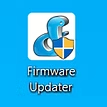
On the second PC, go to the KMBox B+ folder you previously downloaded in the setup guide. The tools for KMBox B+ can be found here: https://kmbox.dev/frimware-database.html
3. Check COM Port Number
Click on Tools >> Serial. Remember which COM numbers you see there.

4. Identify the KMBox COM Port
Disconnect KMBox from your second PC and check which COM numbers have disappeared. In this case, COM7 disappeared. Remember your number.

5. Reconnect KMBox and Select COM Port
Connect KMBox back to your second PC and select the COM port you remembered earlier. In this case, it's COM7.

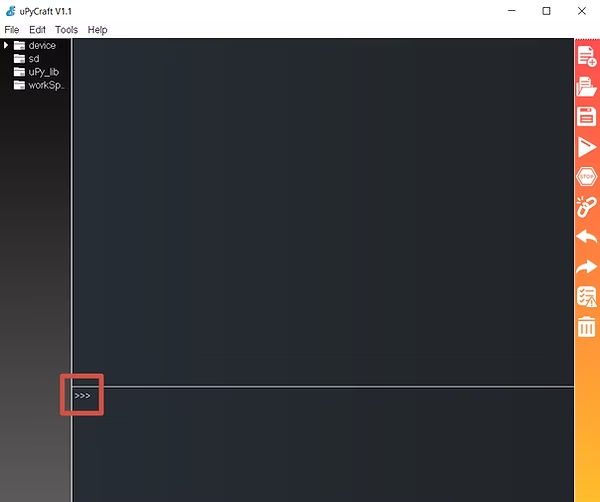
A check mark should appear at the bottom, indicating the connection has been established. If an error message appears, reconnect KMBox and restart the Firmware Updater.
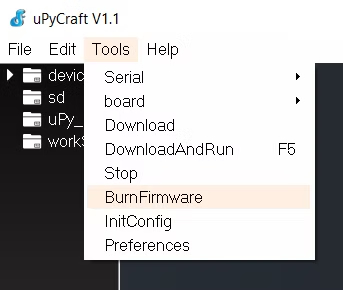
6. Navigate to BurnFirmware
Go to the KMBox B+ Folder >> BurnFirmware.
7. Configure Firmware Settings
Change burn_addr to 0x1000.
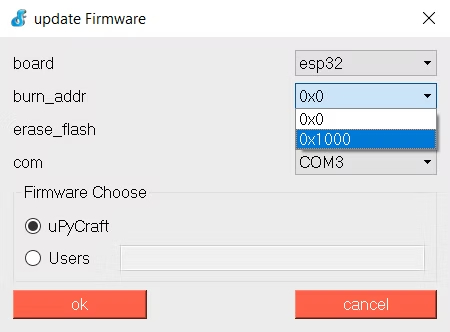
Change erase_flash to yes.

Ensure the COM number is the same as selected before. In this case, it's COM7.

8. Select and Flash Firmware
In "Firmware Choose", click on "Users", then click "choose".

Download and select the latest firmware from kmbox.dev or kmbox.top.

Click OK and wait for the flashing process to complete. This may take 1-2 minutes.

9. Verify Firmware Update
After the process is complete, check the version on the screen of your KMBox. The version should be updated. If your KMBox screen says "Please Activate", it means activation is required.

10. Activate KMBox B+
On the second PC, go to the KMBox B+ folder and run kmboxB版正版查询与激活工具.exe.

If the program fails to start, rename it to "kmboxB版正版查询与激活工具.exe".
11. Enter COM Port Number
Enter the COM number of your KMBox obtained in Step 4. In this case, it's COM7, so enter 7.

12. Complete Activation
Click the activation button.

You will see a confirmation message.

Now, check the KMBox screen. It should display the updated status. The update is complete.

Troubleshooting
- If activation fails, unplug KMBox from your second PC and plug it back in, then try to activate again.
- If activation still fails, your KMBox may not be genuine and cannot be activated. However, you can still attempt to use it.
- If you are using KMBox B+ for the first time, follow all setup instructions here: Setup Guide.


DO NOT ACTIVATE KMBOX
If your KMBox hasn't been activated before August 31st, do not activate as it can cause issues.