
Guides
How to Update KMBox NET
Learn how to update KMBox Net step-by-step with our comprehensive guide.

KMBox Updates
-
20/12/2024
-
5 Minute Read
Updating your KMBox Net firmware ensures optimal performance, resolves bugs, and helps maintain security. Follow this guide for a seamless firmware update process.
1. Prepare the KMBox Net for Update
Connect a USB cable to your 2nd PC. Press the black button inside the KMBox to initiate firmware update mode.
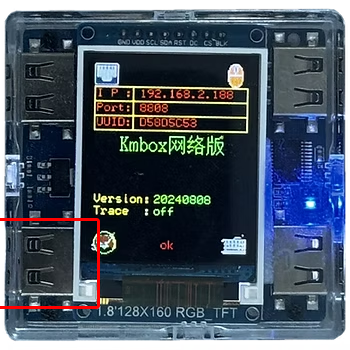
Press and hold the button with a thin object then plug in the USB cable to the KMBox Net to the button left usb port.
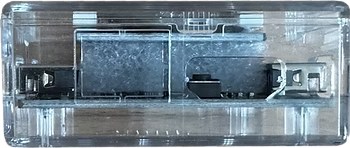
If done correctly, the KMBox screen should turn white, and the blue diode will flash rapidly. If not, retry holding the button and reconnecting the USB cable.
2. Install the Required Files
On your 2nd PC, download the KMBox Pack and install the required driver for the KMBox Net.

3. Launch the Upgrade Tool
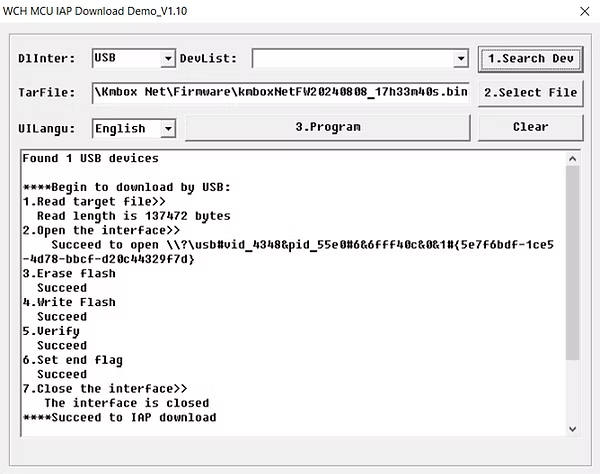
Open the Upgrade Tool on your 2nd PC. Click Search Device. The tool should detect the KMBox with the message:
"Found 1 USB devices"

4. Get The Newest Frimware
Head over to our Discord to get the latest firmware version. Continue to the Offical KMBox Website and download the .bin file

5. Select the Firmware File
Click Select File in the Upgrade Tool. Navigate to where you saved the .bin file and select the firmware file.

6. Start the Update Process
Click Program to start the firmware update process. Wait for a few seconds until the message "Firmware update is complete" appears.

7. You Are Now Updated
If the frimware update now looks something like the image below, you are now successfully updated. Now you need to spoof your mouse identifiers, you follow this guide


DO NOT ACTIVATE KMBOX
If your KMBox hasn't been activated before August 31st, do not activate as it can cause issues.